
Organize Your Scenes
Time to give some structure to what you want to present. The "Organize Scenes" panel will allow you to edit the name, order and add hotspots as well as additional scenes to your orb.
Published by Orbix360º Support
on May 17, 2019
Let's get started by openning the editor located in the side panel.
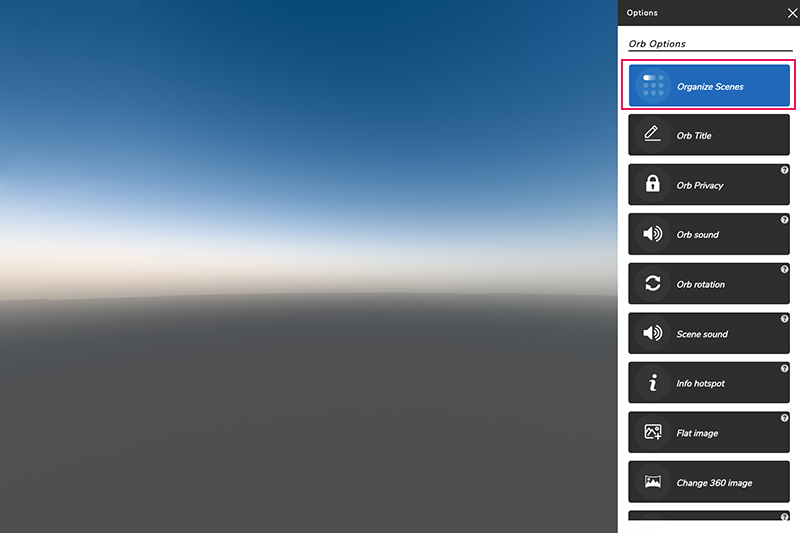
All the images or scenes that uploaded and created will be displayed in this panel. Let's start by giving each one of the scenes and individual name.

Once that all the scenes are properly named, you may want to put them in the order that best represents the story you want to tell. Click and drag the scene to the right position using the up and down arrows.
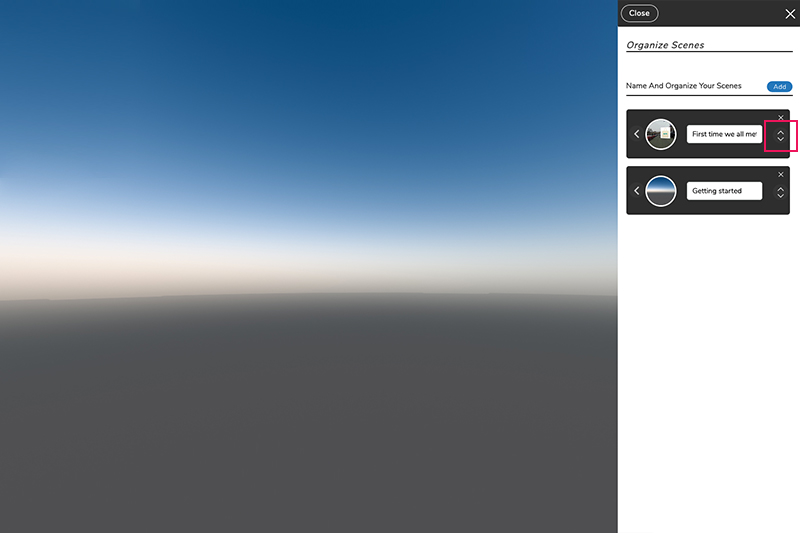
Once your scenes are properly named and organized, you may want to add or delete some of your scenes. You can easily do so by clicking on the "X" at the top right or add by clciking on the add button.

There you go! You have succesfully organized all your scenes!
If you have any questions, join us on Discord:
[Orbix360º on Discord](https://discord.com/invite/jejK5j3 "orbix360")